Run SPYbot to clean Spyware from system



|
Run SPYbot to clean Spyware from system |
|
|
|
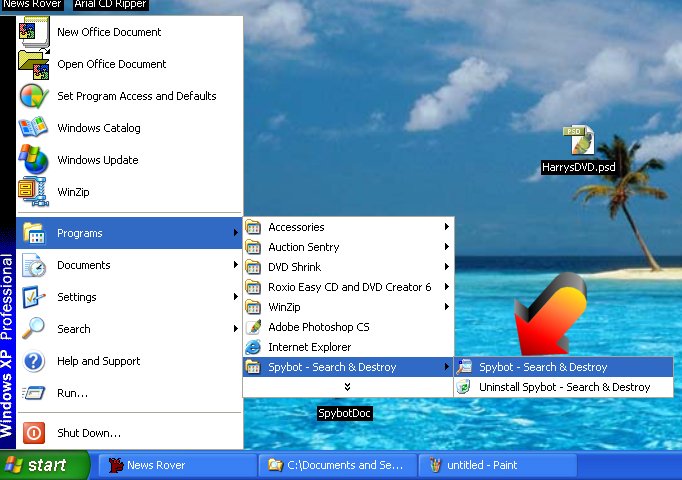
Choose Start � All Programs � Spybot-Search and Destroy - Spybot-Search and Destroy |
|
|
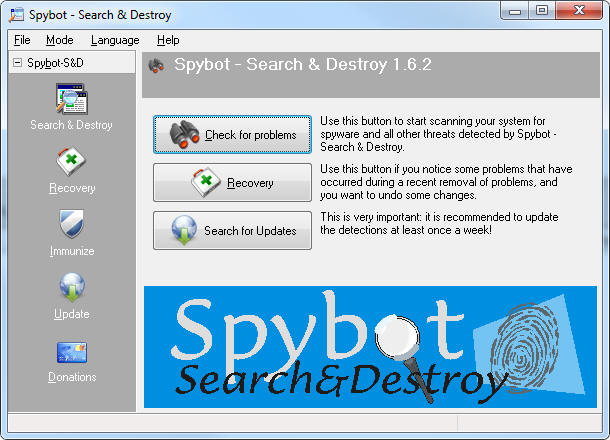
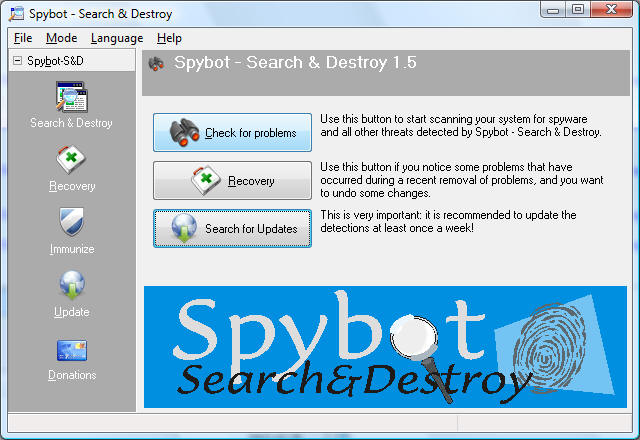
Check to see that you have the most current version of the application. The version is at the top of the screen. You can visit www.sudburycomputer.com/maintenance.htm for a link to download the current version. |
|
|
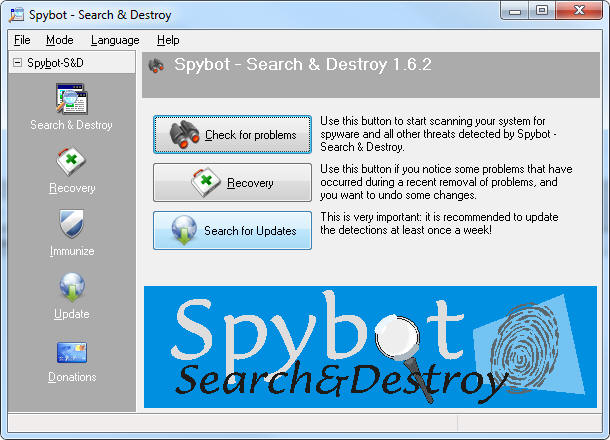
Once Spybot launches, click Search for Updates. |
| |
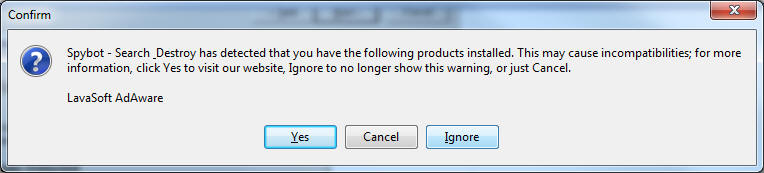
If you see an error about compatibility with Ad-Aware at any time, choose ignore. |
|
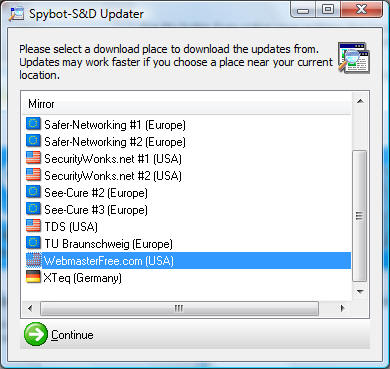
Select a USA server to download updates from and click continue. |
|
|
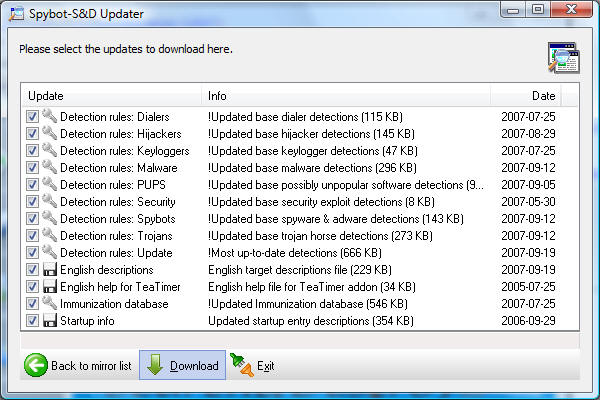
Make Sure all boxes are checked and click download. |
|
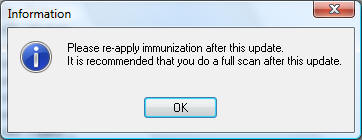
Click OK to the immunization reminder. |
|
|
Click exit after all updates have green checkmarks. This will return you to the main Spybot screen. |
|
|
Click Check for Problems. Spybot will run for a while. You can walk away at this point and check back later. |
|
|
Click Yes to delete temporary files if you see this screen. This will allow Spybot to run quicker. |
|
|
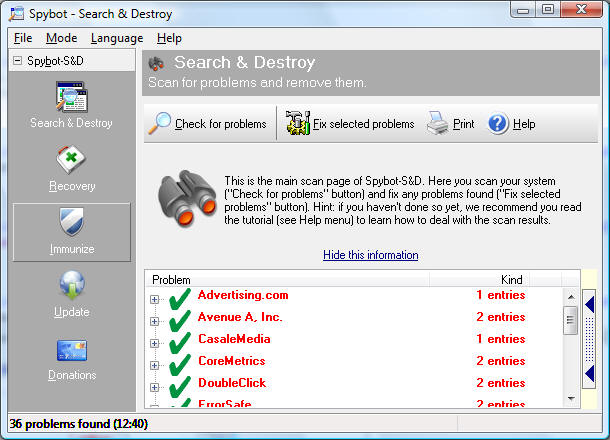
Make sure all entries are checked and Click Fix Selected Problems. |
|
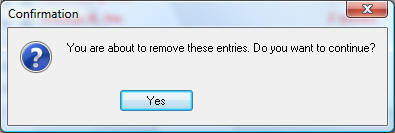
Click Yes to Continue |
|
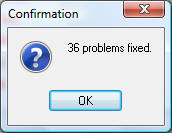
Click OK when all problems are fixed. |
|
|
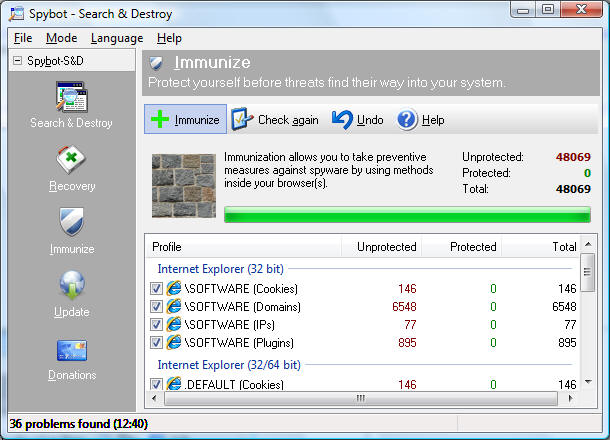
Click the immunize button on the left hand side. |
|
|
Click immunize near the top with the green plus sign. The counter at the top right should show the protected count increasing. You are done with Spybot after this finishes and can close this window. |